
Stripe Payment
Eventixa Pro includes Stripe integration for accepting online credit and debit card payments for paid event tickets.
Once Stripe is configured and active, customers can choose Credit / Debit Card during the Eventixa Payment step and complete their purchase securely.
Available in: Eventixa Pro
Location: Eventixa → Settings → Payments → Payment Gateways → Stripe
Used for: Paid standard tickets
Related features: Checkout, Bookings, Coupons, Refunds
Open Stripe Settings
From the WordPress dashboard, go to: Eventixa → Settings → Payments
Open: Payment Gateways
Find: Stripe
Click: Manage to open the Stripe configuration.
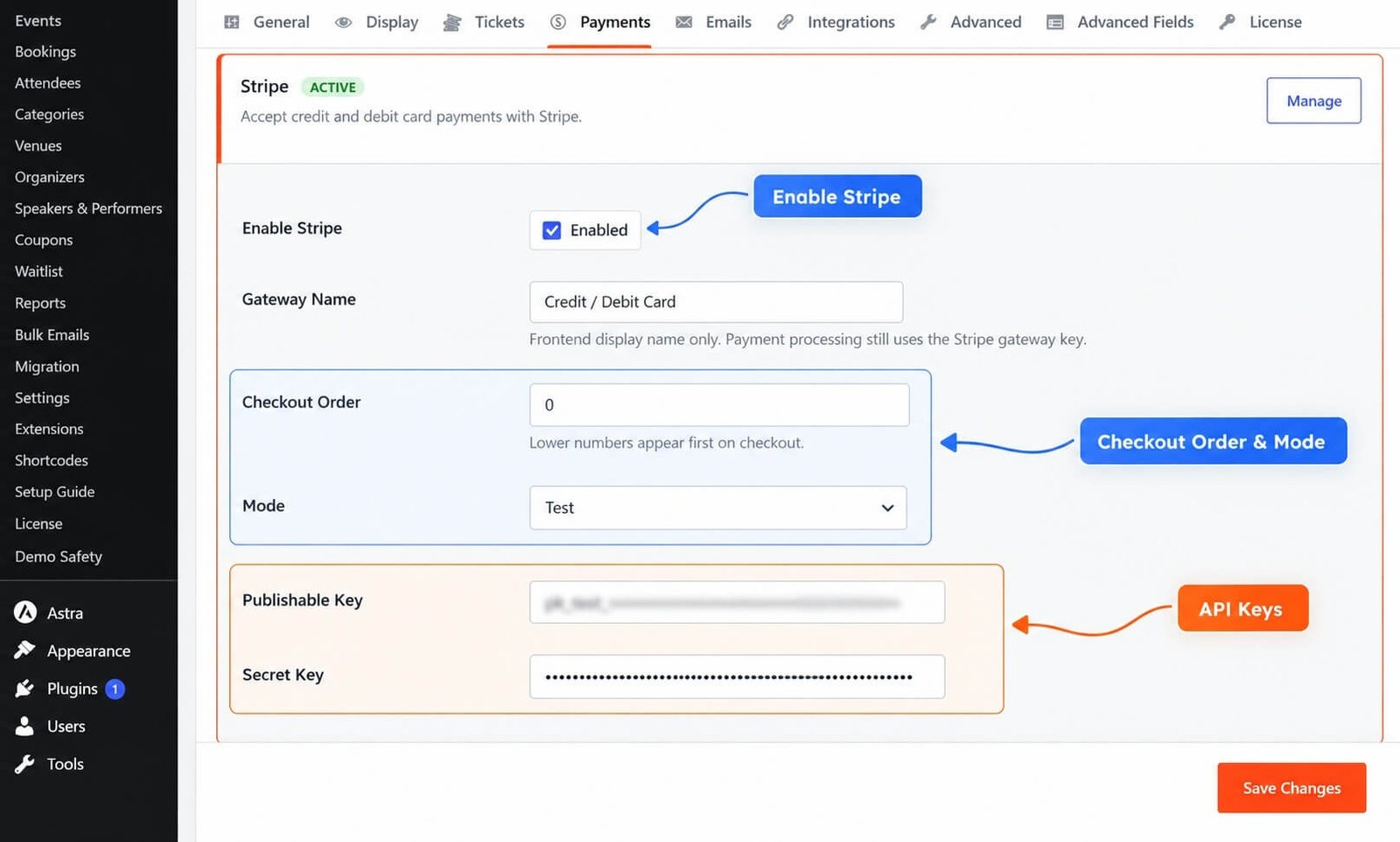
Stripe Gateway Status
The Payment Gateways screen shows whether Stripe is currently active.
For example:
Stripe — ACTIVE
Only active payment gateways appear during eligible Eventixa checkout.
Enable Stripe
Open the Stripe settings and enable the gateway.
After configuring the required Stripe credentials, click: Save Changes
Stripe can then become available to customers purchasing paid Eventixa tickets.
Gateway Name
The Stripe gateway name controls how the payment method is presented on the frontend.
For example: Credit / Debit Card
This is normally clearer for customers than displaying the technical gateway name alone.
Checkout Order
The Checkout Order determines where Stripe appears relative to other enabled payment methods.
Lower numbers appear first.
For example:
- Stripe — 10
- PayPal — 20
- Local — 30
This displays card payment before PayPal and Local payment.
Stripe Mode
Stripe should be configured in the appropriate environment.
Typical modes are:
- Test
- Live
Use Test mode while configuring and validating Eventixa.
Use Live mode only when you are ready to accept real payments.
Test Mode
Stripe Test mode lets you verify the complete payment workflow without charging real cards.
Use Test mode during:
- Development
- Staging
- Gateway setup
- Checkout testing
- Failure testing
Live Mode
Switch to Live mode only after the complete Stripe workflow has been tested successfully.
Live mode processes real financial transactions.
Stripe API Credentials
Eventixa requires the appropriate Stripe credentials for the selected environment.
Depending on the configuration, these can include:
- Publishable Key
- Secret Key
Use credentials from the same Stripe environment as the selected Eventixa mode.
Match Mode and Credentials
Always match: Test mode → Test Stripe keys and Live mode → Live Stripe keys
Do not mix Test and Live credentials.
An environment mismatch can prevent payments from completing correctly.
Keep Stripe Secrets Private
Stripe Secret Keys are confidential.
Never expose them in:
- Public documentation
- Screenshots
- Support forums
- Public repositories
- Browser-visible content
Blur or hide sensitive Stripe credentials in documentation screenshots.
Save Stripe Settings
After entering the required Stripe configuration, click: Save Changes
Return to the Payment Gateways screen and verify Stripe appears as: ACTIVE
Stripe at Checkout
When Stripe is active and the customer selects a paid ticket, the Eventixa Payment step can show: Credit / Debit Card
Supported card-brand indicators may also appear.
The exact card methods available depend on Stripe and your Stripe account configuration
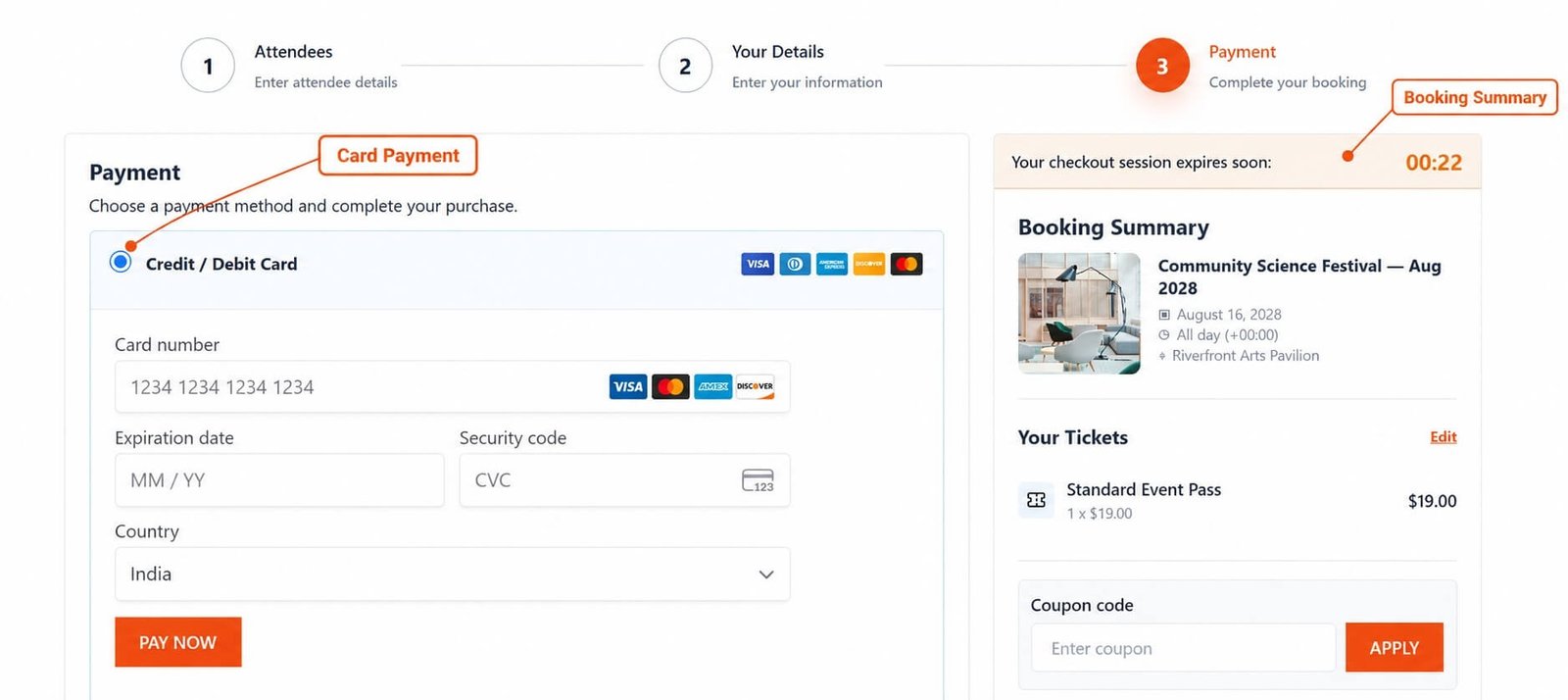
Typical Stripe Checkout Flow
A normal card payment works like this:
- Customer selects a paid Eventixa ticket.
- Customer proceeds to checkout.
- Attendee information is entered.
- Purchaser information is entered.
- Customer reaches the Payment step.
- Credit / Debit Card is selected.
- Card payment information is entered.
- Stripe processes the payment.
- Eventixa receives the payment result.
- Booking and payment statuses are updated.
Secure Card Processing
Sensitive card details are handled through Stripe’s secure payment infrastructure.
Administrators should never manually store raw card numbers, security codes, or card credentials inside Eventixa.
Stripe Card Brands
Depending on your Stripe configuration and region, supported cards can include brands such as:
- Visa
- Mastercard
- American Express
- Discover
Actual availability is controlled by Stripe and your account configuration.
Card Payment Example
Suppose an Eventixa ticket costs: $49
The customer selects: Credit / Debit Card and completes the Stripe payment.
After Stripe confirms the successful transaction, Eventixa can update the booking accordingly.
Stripe and Ticket Quantity
The payment amount is based on the selected ticket quantity.
For example:
Ticket price: $25
Quantity: 4
Subtotal: $100
Stripe should process the final payable amount after Eventixa calculates the booking total.
Stripe and Coupons
If the customer applies a valid coupon, Eventixa calculates the discount before payment.
For example:
Subtotal: $100
Coupon: -$20
Total: $80
Stripe should process: $80
Verify Final Stripe Amount
Before accepting live payments, verify that these values agree:
- Eventixa checkout total
- Eventixa booking total
- Stripe transaction amount
This is especially important when testing:
- Coupons
- Multiple tickets
- Recurring events
- Waitlist bookings
Successful Stripe Payment
A successful Stripe transaction can result in:
Booking status: Completed
Payment status: Paid
Gateway: Stripe
The booking can then continue through the normal Eventixa registration workflow.
Stripe Transaction ID
Stripe transactions can include a payment reference such as a Payment Intent identifier.
For example:
pi_...
This reference helps administrators reconcile Eventixa bookings with Stripe.
Booking Details
To review a Stripe payment, go to: Eventixa → Bookings
Open the booking.
The Payment panel can show information such as:
- Payment status
- Amount
- Gateway
- Transaction ID
Stripe Badge in Bookings
The Eventixa Bookings list can identify Stripe transactions with a Stripe payment-method badge.
This makes them easy to distinguish from:
- PayPal
- Local
- WooCommerce
- Free
- RSVP
Pending Stripe Payment
A payment may temporarily remain: Pending
while Stripe is still processing or waiting for the required payment result.
Do not manually mark a pending payment as Paid unless you have verified the real Stripe transaction.
Failed Stripe Payment
A failed card payment should not be treated as successfully paid.
Possible causes can include:
- Card declined
- Incorrect card information
- Authentication failure
- Stripe configuration problem
- Network interruption
- Payment method restriction
The customer may retry with valid payment information where appropriate.
Card Declined
If Stripe declines the card, Eventixa should not complete the payment as successful.
The customer can try:
- Another card
- Corrected card information
- Another enabled payment gateway
Do not manually mark the booking paid because the customer attempted payment.
Authentication Requirements
Some card transactions may require additional authentication depending on Stripe, the customer’s bank, and the region.
The customer should complete the authentication process provided during Stripe checkout.
If authentication is not completed, the payment may fail.
Stripe and Checkout Session
The standard Eventixa checkout session lasts: 10 minutes
Refreshing the checkout page does not restart the timer.
Customers should complete Stripe payment while the checkout reservation is still valid.
Capacity During Stripe Checkout
Eventixa can temporarily reserve the selected ticket capacity while the customer completes checkout.
This helps prevent the same final tickets from being sold to multiple customers.
Expired Stripe Checkout
If the checkout hold expires before the payment completes, the Eventixa booking can become: Expired and the reserved capacity can be released according to Eventixa rules.
Customer Says Card Was Charged After Expiration
If Eventixa shows the booking as Expired but the customer says Stripe charged the card:
- Do not ask the customer to pay again.
- Open the Eventixa booking.
- Review the transaction ID.
- Check Stripe.
- Compare timestamps and amount.
- Reconcile the booking with the actual Stripe payment.
The actual Stripe transaction should be verified before any manual booking changes.
Payment Mismatch Protection
Eventixa validates the payment context so that one Stripe payment cannot simply be applied to an unrelated booking.
This is particularly important when:
- Customer opens multiple checkout tabs
- Payment is retried
- Waitlist reservation links are used
- Multiple bookings are active
Stripe and Guest Checkout
When Guest Checkout is enabled, visitors can pay using Stripe without creating a WordPress account first.
Guest customers still follow the normal:
- Ticket rules
- Capacity rules
- Checkout timer
- Payment validation
Stripe and Logged-In Users
Logged-in customers can also complete card payments through the Eventixa checkout.
Their booking can remain associated with their WordPress account.
Stripe and Recurring Events
Stripe can be used for eligible paid recurring-event registrations.
The transaction remains associated with the specific Eventixa booking and selected occurrence.
When troubleshooting, verify:
- Event
- Occurrence
- Ticket
- Amount
- Booking
- Stripe transaction
Stripe and Virtual Events
Paid Virtual and Hybrid events can use Stripe.
A successful Stripe payment does not bypass virtual-event access rules.
Access can still depend on:
- Valid booking
- Attendee status
- Meeting reveal timing
- Recurring occurrence
Stripe and Waitlist
Requires Eventixa Pro
If a waitlisted customer receives a temporary reservation for newly available capacity, Stripe can be used to complete an eligible paid booking.
The payment must match the correct reserved booking.
Stripe and 100% Coupons
If a coupon reduces the payable total to: $0
Stripe should not need to process a zero-value card transaction.
Always test 100% discount workflows separately.
Stripe Refunds
Cancelling an Eventixa booking and refunding the Stripe payment are separate actions.
Changing the booking to Cancelled does not itself guarantee that money was returned.
Recommended Stripe Refund Workflow
- Open the Eventixa booking.
- Verify the Stripe transaction.
- Cancel the booking where appropriate.
- Confirm ticket capacity is released.
- Process the financial refund through the supported Stripe workflow.
- Verify the refund in Stripe.
- Mark the Eventixa booking Refunded where appropriate.
- Add an internal note if useful.
Refund the Actual Stripe Charge
If a booking used a coupon:
Ticket subtotal: $100
Coupon discount: $20
Stripe payment: $80
The original Stripe charge is: $80
Use the amount actually paid when processing the refund.
Partial Refunds
If your Stripe workflow supports partial refunds, carefully verify the refunded amount.
For example:
Original payment: $100
Refund: $25
Document partial refund details clearly in the booking notes when needed.
Do Not Mark Refunded Too Early
Do not mark an Eventixa booking Refunded before confirming the financial refund actually succeeded.
The Eventixa administrative state should match the real payment provider result.
Stripe Test Cards
When using Stripe Test mode, use Stripe’s supported test payment methods rather than real card details.
This allows you to test successful and failing payments safely.
Test Successful Payments
Verify:
- Card payment completes
- Booking is created
- Payment status is correct
- Attendees are created
- Capacity changes correctly
- Confirmation email is sent
Test Failed Payments
Also test failure scenarios.
Verify that a failed payment:
- Does not become Paid
- Does not incorrectly confirm the booking
- Does not permanently consume capacity
Test Card Authentication
Where applicable, test a Stripe payment that requires authentication.
Confirm the Eventixa booking behaves correctly if authentication:
- Succeeds
- Fails
- Is abandoned
Test Coupons
Apply a coupon before the Stripe payment.
Confirm:
- Discount is correct
- Final total is correct
- Stripe charge matches the discounted amount
Test Multiple Tickets
For example:
Ticket: $19
Quantity: 3
Subtotal: $57
Complete the Stripe payment and confirm:
- Stripe charge = $57
- Booking quantity = 3
- Capacity decreases correctly
Test Checkout Expiration
Begin checkout and allow the session to expire without completing Stripe payment.
Verify that the booking and capacity return to the expected state.
Test Refunds
Before going live, perform a Stripe test refund and verify:
- Stripe refund result
- Eventixa booking state
- Capacity behavior
- Booking notes
Stripe Webhook / Gateway Synchronization
Stripe payment status can depend on communication between Stripe and Eventixa.
If a booking status appears incorrect, compare the Eventixa record with the actual Stripe transaction before changing anything manually.
Do Not Trust Browser Result Alone
A browser returning to the Eventixa site is not by itself proof that a financial transaction succeeded.
The Stripe payment result must be verified through the gateway workflow.
Going Live with Stripe
After testing is complete:
- Open Stripe settings in Eventixa.
- Switch to Live mode.
- Enter Live Stripe credentials.
- Save Changes.
- Confirm Stripe is Active.
- Complete a controlled live booking if appropriate.
- Verify Eventixa booking.
- Verify the Stripe payment.
- Verify attendee creation.
- Verify email delivery.
Production Checklist
Before accepting real Stripe payments, confirm:
- Stripe is Active.
- Live credentials are correct.
- Correct currency is configured.
- Ticket prices are correct.
- Checkout totals are correct.
- Coupons work correctly.
- Guest Checkout works if enabled.
- Booking statuses synchronize correctly.
- Capacity updates correctly.
- Confirmation emails are delivered.
- Refund workflow has been tested.
Common Problems
Stripe Does Not Appear at Checkout
Check:
- Eventixa Pro is active.
- Stripe is enabled.
- Ticket price is greater than zero.
- Stripe settings are saved.
- Required Stripe credentials are configured.
Card Payment Fails
Check:
- Test vs Live mode
- Stripe credentials
- Card information
- Stripe account status
- Currency support
- Authentication requirements
Payment Succeeded in Stripe but Eventixa Is Pending
Do not charge the customer again.
Verify:
- Stripe transaction
- Eventixa transaction ID
- Booking Notes
- Amount
- Payment timestamp
Then reconcile the booking.
Customer Says They Were Charged Twice
Check the actual Stripe transactions.
Compare:
- Transaction IDs
- Eventixa booking IDs
- Amounts
- Timestamps
Do not assume a duplicate charge based only on multiple booking attempts.
Eventixa Amount and Stripe Amount Differ
Review:
- Ticket quantity
- Ticket price
- Coupon
- Final Eventixa total
- Stripe transaction amount
Stripe Payment Completed After Booking Expired
Verify the Stripe transaction before making any manual changes.
This should be treated as a reconciliation issue rather than automatically requesting another payment.
Refund Completed in Stripe but Eventixa Still Shows Paid
Verify the refund first, then update the Eventixa booking so the administrative state reflects the actual financial result.
Checkout Shows Stripe but Card Form Does Not Load
Review:
- Stripe credentials
- Gateway mode
- Browser errors
- HTTPS
- Site caching
- Plugin conflicts
Recommended Stripe Setup Workflow
- Install and activate Eventixa Pro.
- Go to Eventixa → Settings → Payments.
- Open Payment Gateways.
- Find Stripe.
- Click Manage.
- Enable Stripe.
- Set the gateway display name.
- Configure checkout order.
- Select Test mode.
- Enter Stripe Test credentials.
- Save Changes.
- Create or open an event with a paid ticket.
- Complete a frontend test checkout.
- Select Credit / Debit Card.
- Complete the test payment.
- Verify Eventixa booking.
- Verify Stripe transaction.
- Verify attendees.
- Verify capacity.
- Verify confirmation email.
- Test failed payment.
- Test authentication.
- Test coupons.
- Test refund.
- Switch to Live credentials only after all tests succeed.
Security Notes
Never expose:
- Stripe Secret Key
- Private API credentials
- Webhook secrets
- Authentication tokens
When creating Eventixa documentation screenshots:
- Blur sensitive keys
- Remove unnecessary personal information
- Never publish real production credentials
Important Notes
- Stripe requires Eventixa Pro.
- Configure Stripe under Eventixa → Settings → Payments → Payment Gateways → Stripe.
- Use Test mode before accepting real transactions.
- Test and Live credentials must match the selected mode.
- Stripe processes the final Eventixa checkout amount after applicable discounts.
- Booking status and payment status are separate.
- Failed payments must not be treated as Paid.
- Checkout capacity is temporarily protected during the Eventixa session.
- Cancelling an Eventixa booking does not itself refund Stripe.
- Always verify the real Stripe transaction before manually changing financial statuses.
- Refund the amount actually charged.
- Keep Stripe credentials private.


