
Ticket Capacity and Availability
Eventixa uses ticket capacity and availability rules to control how many attendees can register for an event.
Capacity can be fixed or unlimited, while availability changes dynamically as bookings are created, cancelled, or held during checkout.
Available in: Eventixa Core
Location: Eventixa → Events → Edit Event → Tickets & RSVP
Related features: Checkout, Bookings, RSVP, Waitlist, Recurring Events
What Is Ticket Capacity?
Ticket capacity is the maximum number of registrations allowed for a ticket.
For example:
Capacity: 100
This means the ticket can accept up to 100 attendees, subject to the rest of the Eventixa booking rules.
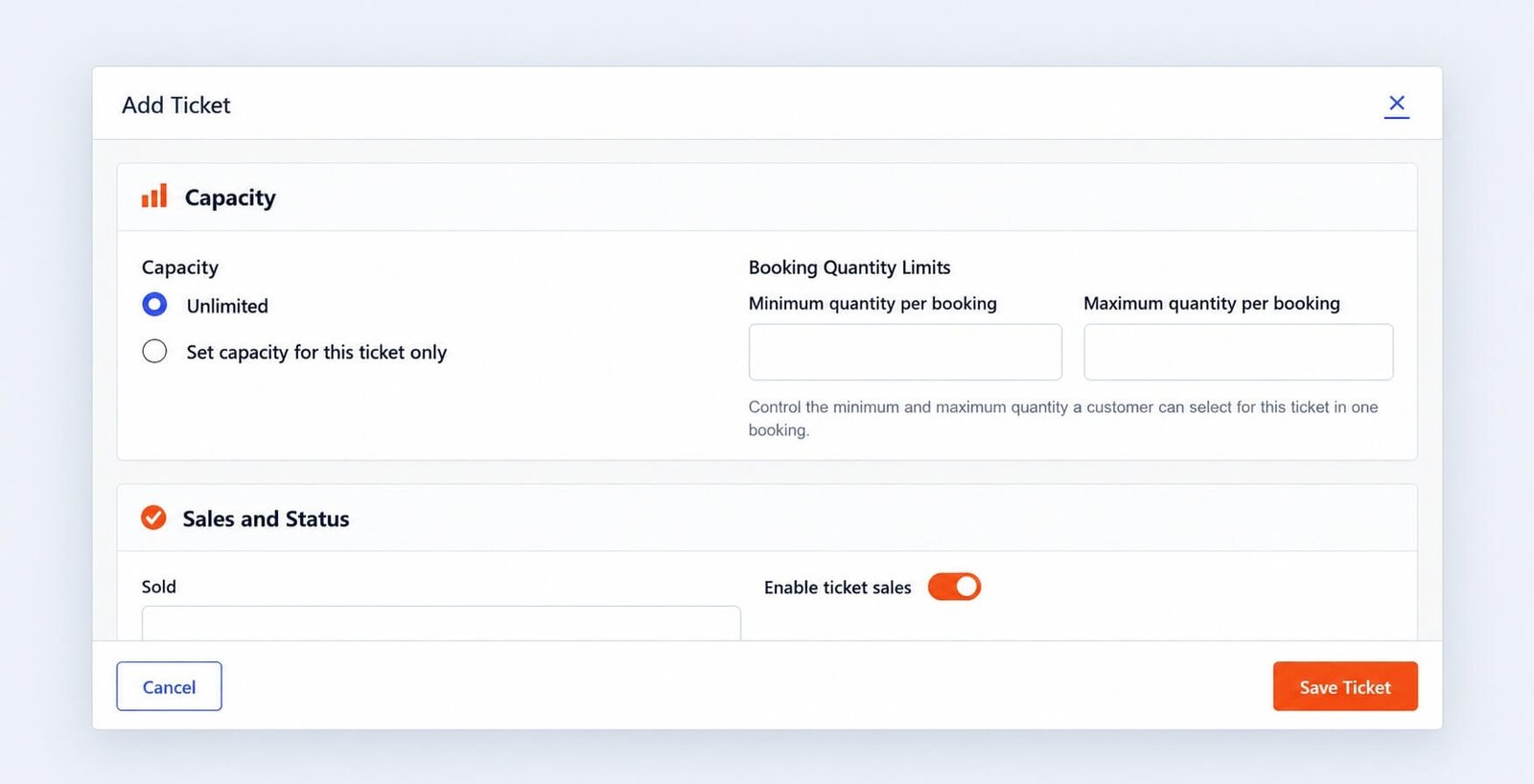
Unlimited Capacity
You can configure a ticket with: Unlimited
Use this when there is no fixed registration limit.
This can be useful for:
- Virtual events
- Livestreams
- Large online webinars
- Events where capacity is managed externally
Even with unlimited capacity, quantity limits and sale schedules can still apply.
Fixed Ticket Capacity
Choose: Set capacity for this ticket only
when the ticket should have a fixed limit.
For example:
Capacity: 50
Eventixa then tracks remaining availability as registrations are created.
Example
Suppose a ticket has:
Capacity: 50 and 18 attendees have registered.
The remaining availability is: 32
Eventixa can show this remaining amount in the admin and frontend.
Capacity Is Attendee-Based
Capacity should represent the number of attendee places, not simply the number of bookings.
For example:
One booking contains:
Quantity: 4
That booking consumes four places.
This is important when one purchaser registers multiple attendees.
Ticket Availability
Availability is the number of places currently available for registration.
Availability can be affected by:
- Ticket capacity
- Confirmed bookings
- Pending reservations
- Current checkout sessions
- Cancellations
- Waitlist reservations
- Recurring occurrence context
This means availability can change without the ticket settings themselves being edited.
Frontend Availability
On the event page, a ticket can display information such as:
100 available10 availableUnlimited available- Sold out or unavailable state
The exact display depends on the ticket state and frontend design.
Capacity and Booking Quantity
Suppose:
Capacity: 10
Already registered: 8
Only two places remain.
Even if the ticket’s maximum booking quantity is four, a visitor cannot validly reserve four because only two places are available.
Availability takes priority over the per-booking maximum.
Last Available Place
Eventixa should correctly handle the final available ticket.
For example:
Remaining: 1
A visitor can select that final place.
Once it is successfully reserved or booked according to the workflow, other visitors should no longer be able to reserve the same place.
Pending Checkout and Capacity
When a visitor begins checkout, Eventixa can temporarily reserve the selected capacity.
This helps prevent multiple visitors from purchasing the same final places at the same time.
For example:
Capacity remaining: 2
Visitor A enters checkout with quantity 2.
Those places may be treated as temporarily unavailable while the checkout session remains active.
Checkout Session Expiration
The temporary reservation should not last forever.
Eventixa uses a checkout-session workflow to release capacity when the reservation expires.
This prevents abandoned checkouts from permanently blocking ticket availability.
Page Reload and Reservation
Reloading the checkout page should not create a new reservation window simply because the page was refreshed.
The existing checkout session remains tied to the active reservation period.
This helps keep capacity calculations stable.
Completed Booking
When checkout succeeds, the temporary reservation becomes part of the completed booking state.
The ticket availability is updated accordingly.
For example:
Capacity: 100
Confirmed attendees: 20
Availability becomes: 80
Cancelled Booking
When an eligible booking is cancelled, Eventixa can release its capacity.
For example:
Before cancellation: 0 available
Cancelled booking quantity: 2
After capacity is released: 2 available
This lets new attendees register for the released places.
Refunded Booking
A refund and a cancellation are related but not identical operations.
Eventixa can manage booking status and released capacity, while the actual payment refund may need to be processed separately through the payment provider.
Once a booking has been cancelled and its capacity released, the administrative refund status can be handled according to the applicable workflow.
Sold Out Tickets
A ticket is effectively sold out when there is no capacity available for new registration.
For example:
Capacity: 50
Registered/reserved: 50
Availability: 0
The frontend should no longer allow a normal additional registration for that ticket.
Waitlist and Sold-Out Tickets
Requires Eventixa Pro
If Waitlist is enabled, a sold-out ticket can allow visitors to join the waitlist where configured.
When a place later becomes available, Eventixa can reserve that place for an eligible waitlisted attendee.
Waitlist Reservation
When a cancellation releases capacity, Eventixa’s waitlist workflow can reserve the released place immediately for the next eligible waitlisted attendee.
That reserved place should not simultaneously become generally available to another visitor.
This protects waitlist order and prevents overselling.
Ticket-Level Capacity
Each ticket can have its own capacity.
For example:
Student Admission
Capacity: 100
VIP Pass
Capacity: 20
General Admission
Capacity: 250
Each ticket tracks its own availability according to its registrations.
Multiple Ticket Types
When an event has several ticket types, review whether the capacities make sense together.
For example, a venue holds 200 people but the tickets are configured as:
- General Admission: 200
- VIP: 50
- Student: 100
If all three are independently available without an event-wide constraint, total registrations could exceed the physical venue capacity.
Plan ticket capacities according to the real event limit.
Total Event Capacity
The Tickets & RSVP interface can show a total event capacity summary based on configured ticket settings.
Use this as an additional planning reference.
Ticket-level capacity remains important because each ticket tier may have its own limit.
RSVP Capacity
RSVP tickets also use capacity.
For RSVP:
- Going attendees consume capacity.
- Not Going attendees do not represent occupied places.
RSVP counts are attendee-based.
RSVP Example
Suppose:
RSVP capacity: 100
and:
- Going attendees: 80
- Not Going attendees: 12
Remaining attendance capacity is based on the 80 Going attendees, not all RSVP responses combined.
Recurring Events
Recurring events require occurrence-aware availability.
For example:
April 15 occurrence: 1 booking
April 29 occurrence: No bookings
Those occurrences should not incorrectly share the same active booking count.
Each occurrence needs the correct registration context.
Capacity by Occurrence
Suppose each recurring occurrence has capacity 25.
April 15
20 registered
5 available
April 29
5 registered
20 available
Even though the ticket configuration is related to the same recurring event, the active availability differs by occurrence.
Deleting an Occurrence
Before removing an occurrence, review whether it has bookings.
If an occurrence has registered attendees:
- Review the bookings.
- Contact attendees if necessary.
- Handle cancellation.
- Handle refunds where applicable.
- Review released capacity and waitlist state.
- Then modify the occurrence.
Editing Capacity After Registrations
Be careful when reducing ticket capacity after bookings exist.
For example:
Existing attendees: 40
Do not reduce capacity to: 30
without first understanding how Eventixa should treat the ten registrations already beyond the new limit.
As a general operational rule, do not set capacity below already committed registrations.
Increasing Capacity
Increasing capacity is straightforward.
For example:
Old capacity: 50
New capacity: 75
This makes up to 25 additional places available, subject to other ticket rules.
Capacity and Sale Schedule
A ticket can still be unavailable even when capacity remains.
For example:
Available capacity: 25
Sale ended: Yes
The ticket should no longer accept normal registrations.
Availability therefore depends on more than stock alone.
Capacity and Quantity Limits
Ticket availability and booking quantity limits work together.
For example:
Capacity remaining: 8
Maximum per booking: 4
A purchaser can select up to four.
If only two places remain later, the maximum selectable quantity becomes effectively two.
Capacity and Attendee Fields
Collecting attendee information does not change capacity calculations.
If one booking contains four attendees, the capacity used is four regardless of how many fields are collected.
Capacity and Payment Failure
If a paid checkout fails or expires, the temporary reservation should eventually be released according to the checkout session workflow.
This prevents failed payments from permanently reducing stock.
Capacity and Offline Payment
Offline Payment may create a booking before money is collected externally.
Review the booking status and capacity behavior according to your event’s payment workflow.
Do not assume unpaid offline bookings should be manually ignored when evaluating availability.
Admin Ticket Details
The Tickets list can show values such as:
- Price
- Capacity
- Available
- Sales period
Use this area to quickly verify that the current ticket state matches your expectations.
Example: Limited Workshop
Configuration:
| Setting | Value |
|---|---|
| Ticket | Workshop Admission |
| Capacity | 25 |
| Maximum per booking | 2 |
If 20 attendees have registered:
Available: 5
A new visitor can book no more than two places at once.
Example: Unlimited Webinar
Configuration:
| Setting | Value |
|---|---|
| Ticket | Webinar Access |
| Capacity | Unlimited |
| Maximum per booking | 1 |
There is no fixed stock limit, but each booking can only contain one ticket.
Example: Sold-Out Event
Configuration:
Capacity: 100
Registered/reserved: 100
The ticket becomes unavailable for normal booking.
If Waitlist is enabled, visitors can follow the waitlist workflow instead.
Common Problems
Availability Is Lower Than Expected
Check:
- Confirmed bookings
- Pending checkout reservations
- Waitlist reservation
- Correct recurring occurrence
Ticket Shows Sold Out but a Booking Was Cancelled
Check whether:
- The booking was actually cancelled.
- Capacity was released.
- A waitlist reservation immediately claimed the released place.
Availability Changes During Testing
Another checkout session may be temporarily holding capacity.
Wait for the session to expire or complete/cancel the test checkout properly.
Capacity Is Unlimited but Ticket Is Unavailable
Check:
- Sale schedule
- Event schedule
- Ticket status
Unlimited capacity does not override other availability rules.
Recurring Event Shows Wrong Availability
Confirm you are testing the correct occurrence.
Then review the booking association for that occurrence.
Capacity Does Not Match Booking Count
Remember that bookings can contain multiple attendees.
Compare capacity against attendee quantity, not only the number of booking records.
Recommended Testing
For limited-capacity tickets, test:
- Normal booking.
- Multiple quantities.
- Maximum quantity.
- Last available place.
- Two checkout sessions competing for the final stock.
- Checkout expiration.
- Payment failure.
- Successful booking.
- Cancellation.
- Capacity release.
- Waitlist if enabled.
- Multiple recurring occurrences if applicable.
Recommended Workflow
- Decide the real event capacity.
- Set ticket-level capacity.
- Configure booking quantity limits.
- Save the ticket.
- Preview frontend availability.
- Complete test bookings.
- Verify availability decreases correctly.
- Test the last available place.
- Test checkout expiration.
- Cancel a booking.
- Verify capacity returns.
- Test waitlist behavior if enabled.
Important Notes
- Capacity is based on attendee places, not just booking records.
- Pending checkout reservations can temporarily reduce availability.
- Expired reservations should release capacity.
- Cancellation can release capacity.
- Waitlist reservations can immediately claim released places.
- Unlimited capacity does not bypass sale schedules.
- Recurring-event availability should remain occurrence-aware.
- Never reduce capacity below committed registrations without reviewing the consequences.


