
Every recurring event consists of one or more occurrences. Each occurrence represents an individual instance of the recurring event and can be managed independently when needed.
The Occurrences panel provides a centralized place to view and manage all generated occurrences.
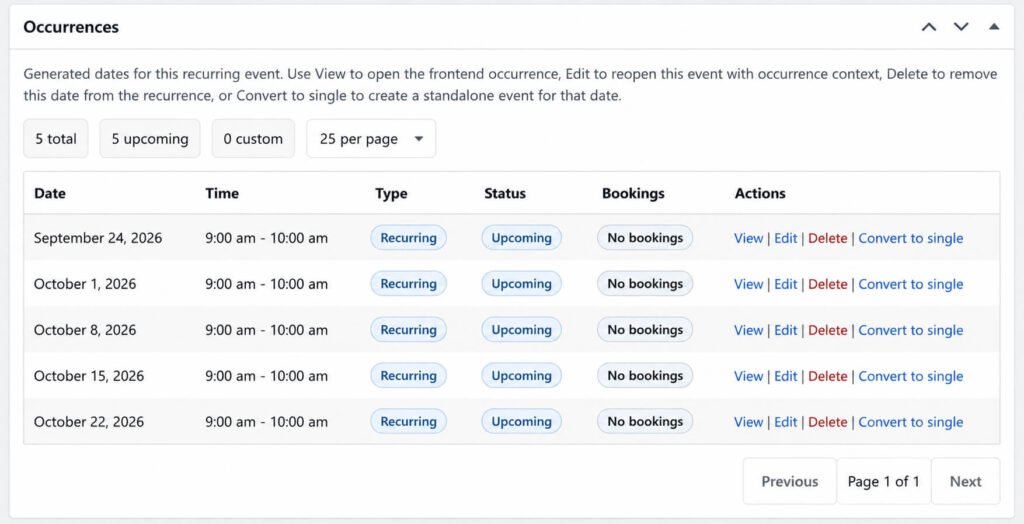
View Occurrences
To view all occurrences:
- Go to Eventixa → Events.
- Edit a recurring event.
- Scroll to the Occurrences section.
The Occurrences panel displays all generated occurrences along with their event dates and available actions.
Occurrence Information
Each occurrence includes important details such as:
- Event Date
- Event Status
- Occurrence ID
- Available Actions
This makes it easy to identify and manage individual events within the recurring series.
Available Actions
Each occurrence includes several quick actions.
View
Open the selected occurrence on the frontend to see how it appears to visitors.
Edit
Edit an individual occurrence without affecting the rest of the recurring series.
After making your changes, choose how the updates should be applied.
Delete
Delete a single occurrence from the recurring series.
Only the selected occurrence is removed. The remaining occurrences continue to follow the recurrence schedule.
Convert to Single Event
Convert an occurrence into a standalone event.
Once converted:
- The occurrence is no longer linked to the recurring series.
- It can be edited independently.
- Future changes to the recurring series will not affect it.
This is useful when a single occurrence requires significant changes.
Pagination
For recurring events with many occurrences, Eventixa automatically paginates the list to improve performance and make navigation easier.
Use the pagination controls to browse through all occurrences.
Search and Review
Before editing or deleting an occurrence, review the event date to ensure you’re managing the correct instance.
This is especially helpful for recurring events with a large number of occurrences.

Tips
- Use View to verify an occurrence before making changes.
- Convert an occurrence into a standalone event if it needs to differ significantly from the recurring series.
- Delete only the occurrences that are no longer required instead of removing the entire recurring event.
- Review the occurrence date carefully before performing any action.
Frequently Asked Questions
Can I edit a single occurrence?
Yes. Click Edit next to the occurrence you want to modify.
Can I delete only one occurrence?
Yes. Deleting an occurrence removes only that specific event and does not affect the rest of the recurring series.
What happens when I convert an occurrence into a single event?
The occurrence becomes an independent event. Any future updates to the recurring series will no longer affect it.
Can I restore a deleted occurrence?
If the occurrence still falls within the recurrence schedule, you can regenerate it by updating the recurring event. Otherwise, you’ll need to recreate it manually.


