
Eventixa makes it easy to update recurring events while giving you full control over how changes are applied. Whether you want to modify a single occurrence or update the entire series, Eventixa provides flexible editing options.
Edit a Recurring Event
- Go to Eventixa → Events.
- Open the recurring event you want to edit.
- Make the required changes.
- Click Update.
If your changes affect the recurrence schedule or event details, Eventixa will ask how the updates should be applied.
Choose How to Apply Changes
When updating a recurring event, you’ll see three options.
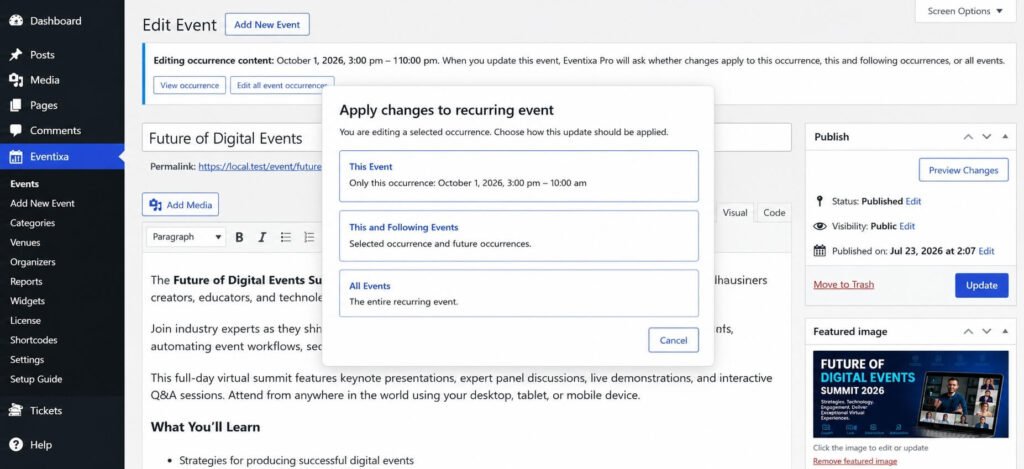
This Event
Updates only the selected occurrence.
Use this option when you need to modify a single event without affecting the rest of the series.
Common examples include:
- Changing the event time
- Updating the event description
- Changing the venue for one occurrence
- Cancelling a single occurrence
This and Following Events
Updates the selected occurrence and every future occurrence in the series.
Past occurrences remain unchanged.
This option is useful when the event schedule changes from a specific date onward.
Examples include:
- Moving the event to a new venue
- Changing the start time for future events
- Updating ticket prices for future occurrences
- Assigning a new organizer
All Events
Applies the changes to every occurrence in the recurring series.
Use this option when the changes should affect the entire event.
Examples include:
- Changing the event title
- Updating the featured image
- Editing the event description
- Modifying recurrence settings
- Updating event categories
Edit an Individual Occurrence
Each occurrence can be edited independently.
To edit an occurrence:
- Open the recurring event.
- Go to the Occurrences section.
- Locate the occurrence you want to edit.
- Click Edit.
- Make your changes.
- Choose This Event when saving.
Only the selected occurrence will be updated.
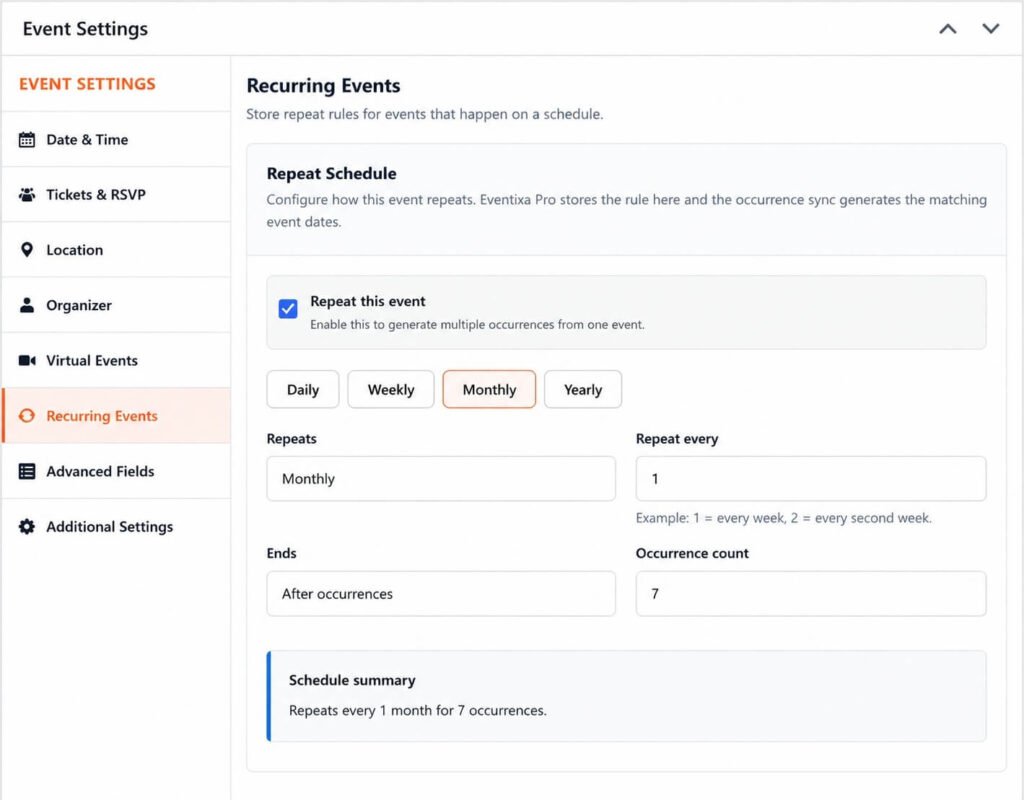
Update Recurrence Settings
You can modify the recurrence schedule at any time.
Available options include:
- Recurrence Type
- Repeat Interval
- Weekdays
- End Date
- Number of Occurrences
- Exceptions
After saving, Eventixa automatically updates future occurrences based on the new schedule.
Tips
- Use This Event for one-time changes.
- Use This and Following Events when the schedule changes from a specific date.
- Use All Events for updates that should apply to the entire recurring series.
- Review your changes before saving, especially when updating all events.
Frequently Asked Questions
Can I edit only one occurrence?
Yes. Open the desired occurrence, make your changes, and choose This Event when updating.
Will changing one occurrence affect the others?
No. Selecting This Event updates only the chosen occurrence.
Can I update future events without changing past events?
Yes. Choose This and Following Events to apply changes from the selected occurrence onward.
Can I update the entire recurring series?
Yes. Select All Events to apply your changes to every occurrence in the series.


