
The Bookings section is the central place for managing all event registrations in Eventixa. Every time an attendee purchases a ticket or submits an RSVP, Eventixa automatically creates a booking record containing the event, attendee, ticket, payment, and registration details.
From the Bookings screen, organizers can review registrations, monitor payment statuses, update booking information, and manage attendee records throughout the event lifecycle.
Accessing Bookings
To view all bookings:
- From the WordPress Dashboard, navigate to Tickets → Bookings.
- The bookings list displays registrations from all events.
- Click any booking to view its complete details.
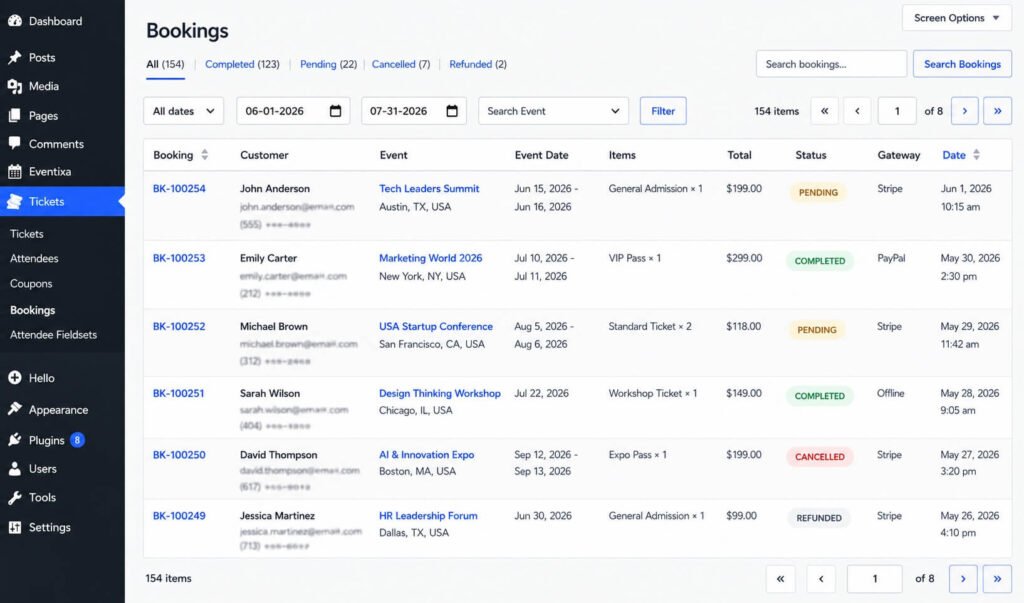
You can also access bookings directly from an individual event by selecting View Bookings in the Tickets & RSVP section.
Understanding the Bookings List
Each booking contains essential information to help you identify and manage registrations.
Typical information includes:
- Booking Number
- Event Name
- Event Date
- Customer Name
- Customer Email
- Ticket(s)
- Booking Status
- Payment Status
- Payment Method
- Total Amount
- Booking Date
This overview allows you to quickly monitor registrations across all events.
Booking Status
Every booking is assigned a status that reflects its current state.
Common booking statuses include:
| Status | Description |
|---|---|
| Pending | The booking has been created but is awaiting confirmation or payment. |
| Confirmed | The booking has been successfully completed and the attendee is registered. |
| Cancelled | The booking has been cancelled and is no longer valid. |
| Refunded | Payment has been refunded and the booking is closed. |
The available statuses may vary depending on your payment method and workflow.
Searching Bookings
The booking list includes a search feature to help you quickly locate registrations.
You can search using:
- Booking Number
- Customer Name
- Customer Email
- Event Name
- Ticket Name
This is particularly useful when managing large events with many attendees.
Filtering Bookings
Use filters to display only the bookings you need.
Common filters include:
- Event
- Booking Status
- Payment Status
- Date Range
- Payment Method
Filtering helps organizers quickly review specific registrations or identify bookings requiring attention.
Viewing Booking Details
Click any booking to open its detailed information page.
A booking typically includes:
Booking Information
- Booking Number
- Booking Date
- Booking Status
- Payment Status
- Payment Method
Event Information
- Event Name
- Event Date
- Event Time
- Venue
- Organizer
Customer Information
- Full Name
- Email Address
Ticket Information
- Ticket Name
- Quantity
- Price
- Discounts (if applicable)
- Total Amount
Attendee Information
Any attendee information collected during registration is displayed with the booking.
This may include:
- Company
- Job Title
- Dietary Requirements
- Phone Number
- T-Shirt Size
- Custom Registration Fields
Managing a Booking
Depending on your workflow, you can perform various actions directly from the booking.
Common management tasks include:
- View booking details
- Review attendee information
- Update booking status
- Cancel a booking
- View associated tickets
- Open the attendee record
All booking changes are recorded within the system for future reference.
Booking Lifecycle
A typical booking follows this workflow:
Customer Registers
        │
        ▼
Booking Created
        │
        ▼
Payment Processed (if applicable)
        │
        ▼
Booking Confirmed
        │
        ▼
Confirmation Email Sent
        │
        ▼
Attendee Appears in Attendee List
        │
        ▼
Check-In at Event (Pro)
For free RSVP registrations, the payment step is skipped.
Bookings for Paid Events
When attendees purchase paid tickets:
- Payment information is stored with the booking.
- Booking totals are calculated automatically.
- Ticket inventory is updated.
- Confirmation emails are sent after successful registration.
Bookings for Free Events
For free events and RSVP registrations:
- No payment is required.
- A booking record is still created.
- Attendee details are stored.
- Confirmation emails are sent automatically.
This allows organizers to manage free and paid registrations using the same booking system.
Booking Emails
Each booking can trigger automatic email notifications.
Typical emails include:
- Booking Confirmation
- Payment Confirmation
- Cancellation Notification
- Administrator Notification
Email templates can be customized from Eventixa → Settings → Emails.
Viewing Related Attendees
Every booking is linked to one or more attendee records.
From the booking, you can quickly:
- View attendee details
- Review registration information
- Access ticket information
- Check attendee status
This keeps booking and attendee management connected.
Booking History
Each booking retains its information for future reference, allowing organizers to review registrations, payments, and attendee details even after an event has concluded.
Best Practices
- Review new bookings regularly to ensure registrations are being recorded correctly.
- Monitor pending bookings and follow up if payment is required.
- Verify attendee information before the event begins.
- Keep booking statuses up to date for accurate reporting.
- Use search and filters to quickly locate registrations during busy events.
- Review booking records before exporting attendee data or generating reports.
Example Booking
| Field | Value |
|---|---|
| Booking Number | BK-100245 |
| Event | Future of Digital Events Summit 2026 |
| Customer | Sarah Johnson |
| Ticket | General Admission |
| Quantity | 2 |
| Total | $98.00 |
| Payment Method | Stripe |
| Payment Status | Paid |
| Booking Status | Confirmed |
| Booking Date | September 12, 2026 |
Tips
- Every successful ticket purchase or RSVP registration creates a booking automatically.
- Bookings provide a complete record of event registrations, payments, and attendee information in one place.
- Use the booking details page to review customer, event, ticket, and attendee information before the event.
- For Eventixa Pro users, bookings integrate seamlessly with QR Ticket generation and attendee check-in, making on-site event management faster and more efficient.


